

If your team uses HubSpot but your landing pages, emails, and blog posts all look different, it’s time to centralize your brand assets. A centralized Brand Kit ensures your logos, colors, voice and domains are consistently used across all your HubSpot content. Here’s how to set it up.
Accessing the Brand Kit:
To begin, navigate to Content > Brand in your HubSpot account to find the Brand Kit settings.
1. Set Your Logo and Brand Colors
This is the first step to ensuring your branding is automatically applied in tools like the Campaign Asset Manager, Social Media, and Email Composers.
Adding or editing your Logo
1. Browse for Logo Image:
Click the "Upload" or "Browse" button to select your logo file.
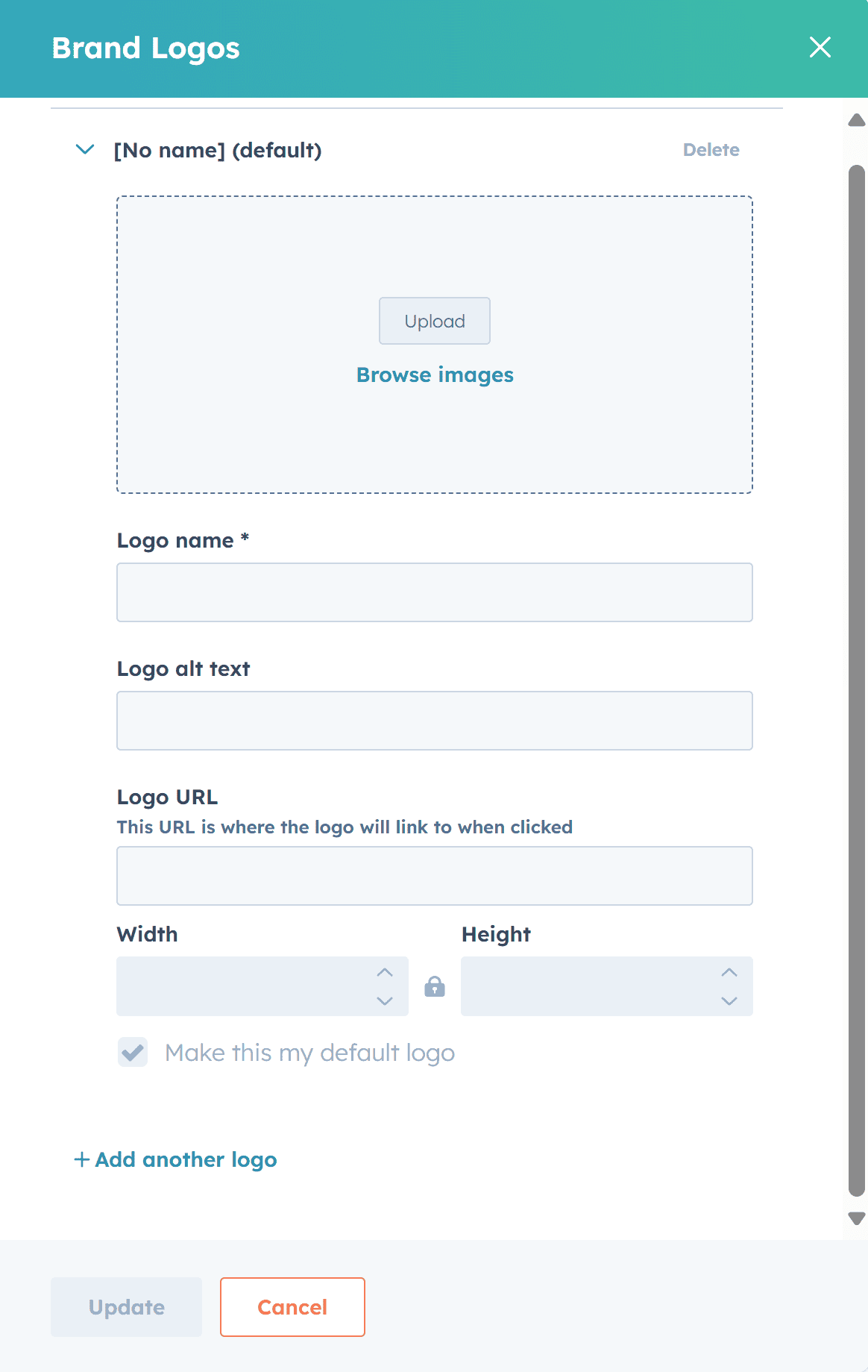
2. Logo Name:
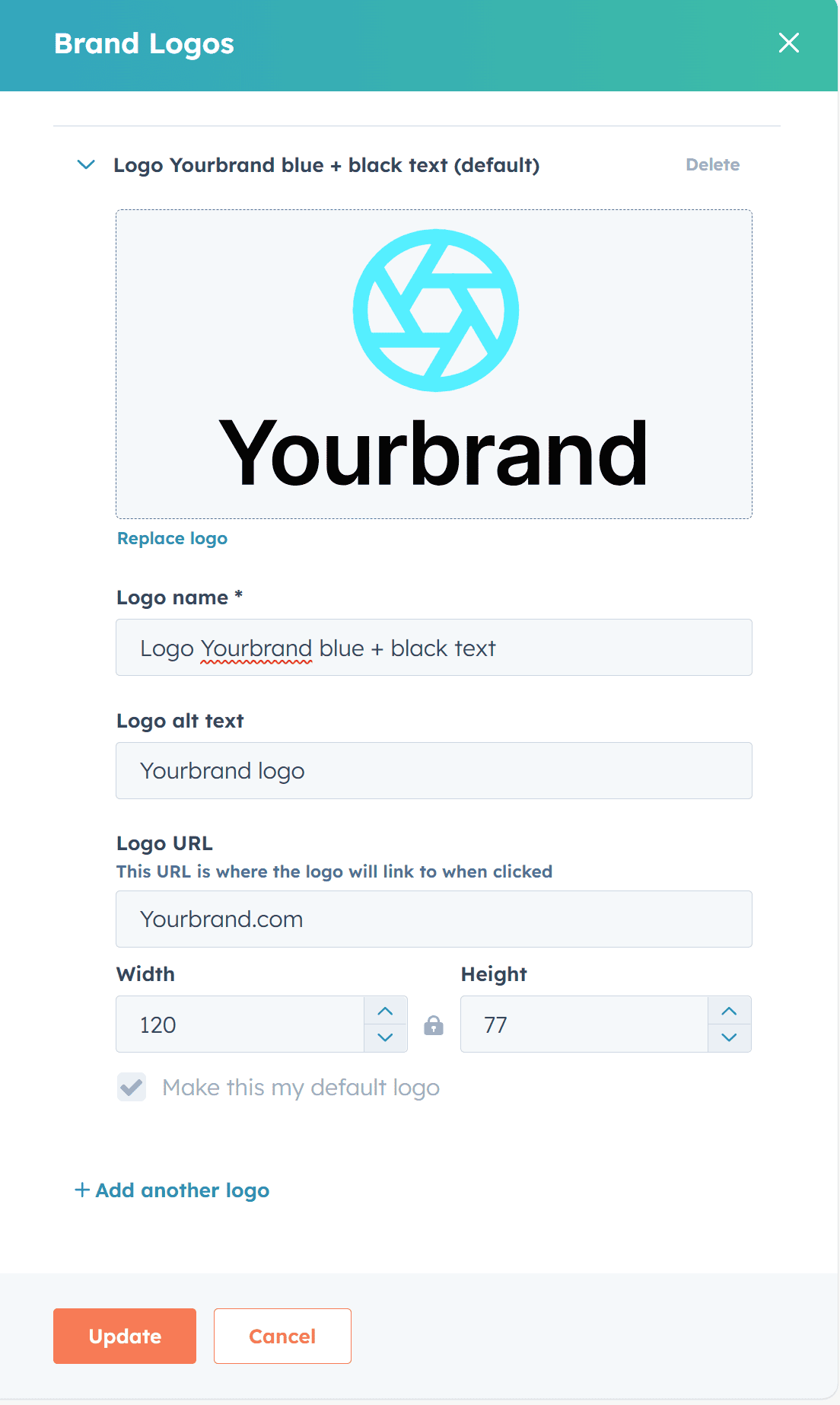
Assign a clear, descriptive name (e.g., "Logo Yourbrand blue+ Black Text").
3. Logo Alt-Text:
This is a short, descriptive phrase added to a logo image’s HTML code. It improves accessibility
for screen reader users and provides context for SEO and if the image fails to load. Example,"Yourbrand logo" or "
Yourbrand main logo".
4. Width and Height:
HubSpot will typically display the logo's native dimensions.
Advice: Download all variants of your logo and upload them to your Brand Kit for different use cases:
- Full-Color Logo
- All-White Logo (for dark backgrounds)
- All-Black Logo
- Icon (a simplified version)
- Different sizes (horizontal, square, etc.)
To add another logo, click + Add another logo at the bottom.
2. Add Your Favicon
The favicon is a small but crucial part of your brand identity, displayed in the browser tab and address bar.
How to Add It in HubSpot:
Step 1: Add Favicon Name: Give your favicon a recognizable name.
![Upload Favicon]](https://strapi.azure.codecave.network/uploads/Upload_Favicon_8b00ad56c9.png)
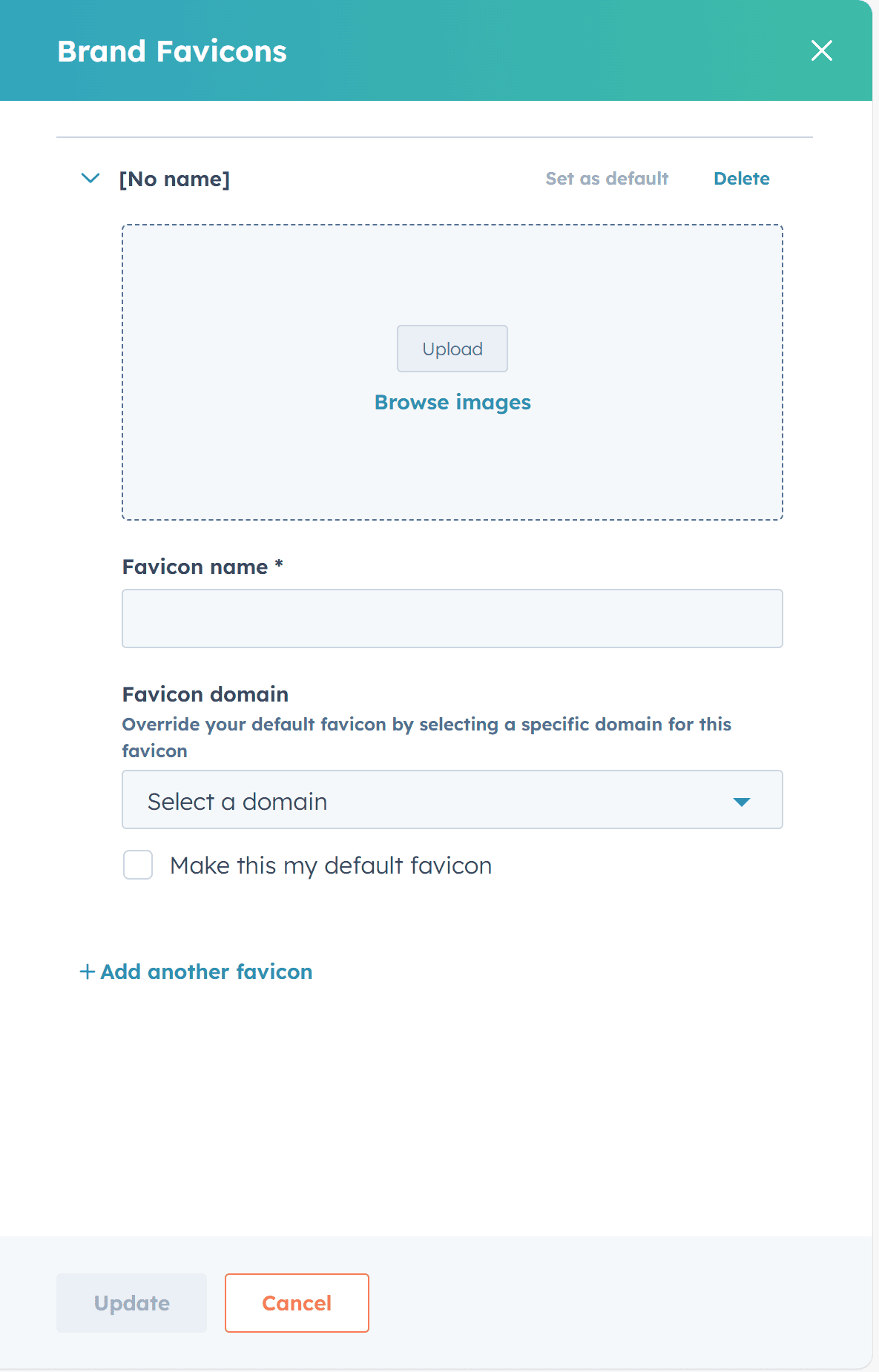
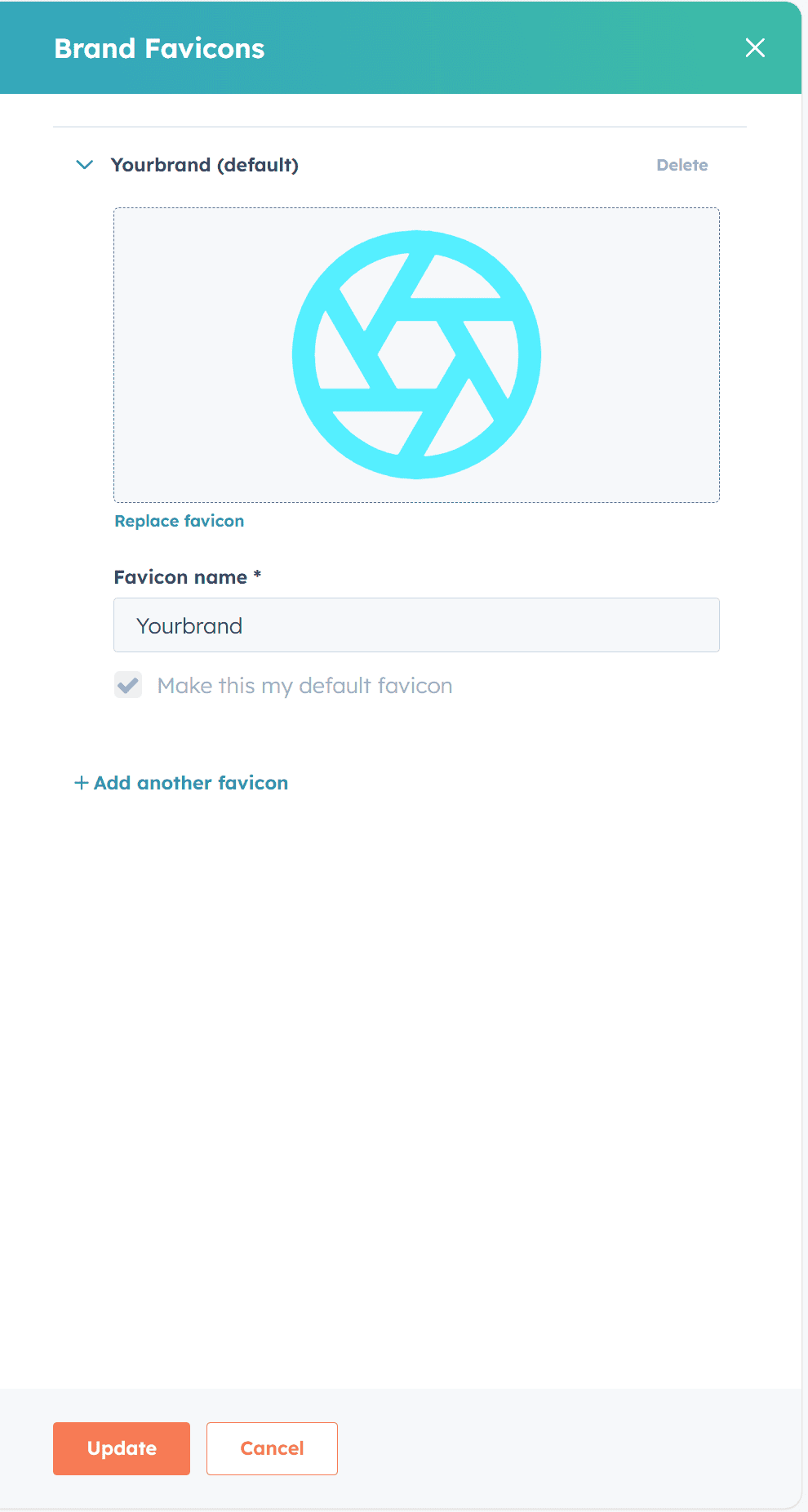
Step 2: Add Favicon Domain: Assign it to the specific connected domain where it should appear. By clicking the check mark, you can set this favicon as the default for all domains.
How to Connect Domains and Assign Content Types
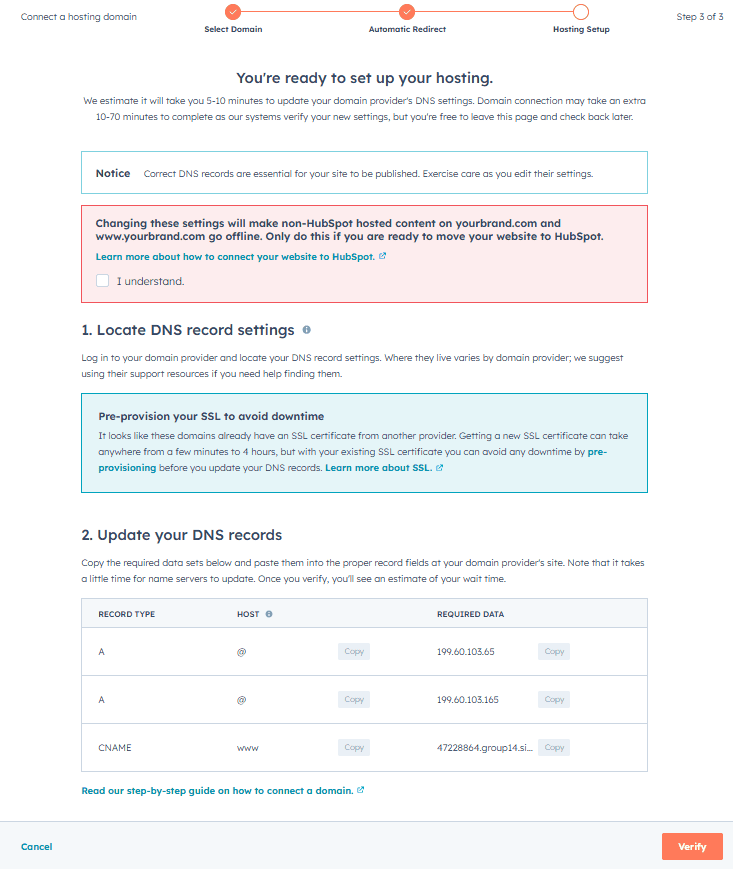
Connecting your domains tells HubSpot where to apply your branding and allows you to set primary content types.
How to Connect a Domain:
- Click your profile context menu (your avatar in the top-right corner).
- Select "Profile & Preferences."
- Go to the "Tools" chapter and find "Content" -> "Domains & URLs."
- Click the "Connect a domain" button.
- Choose the type of domain (e.g., "Hosting" for your main website).
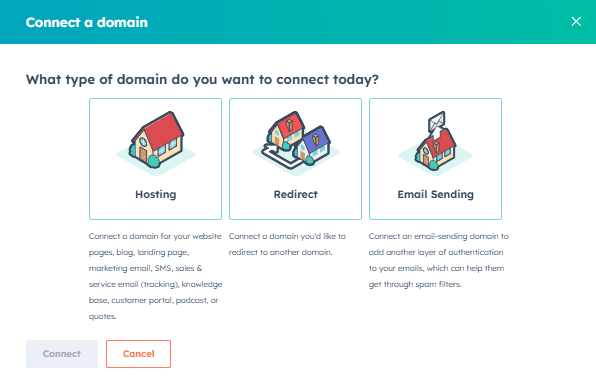
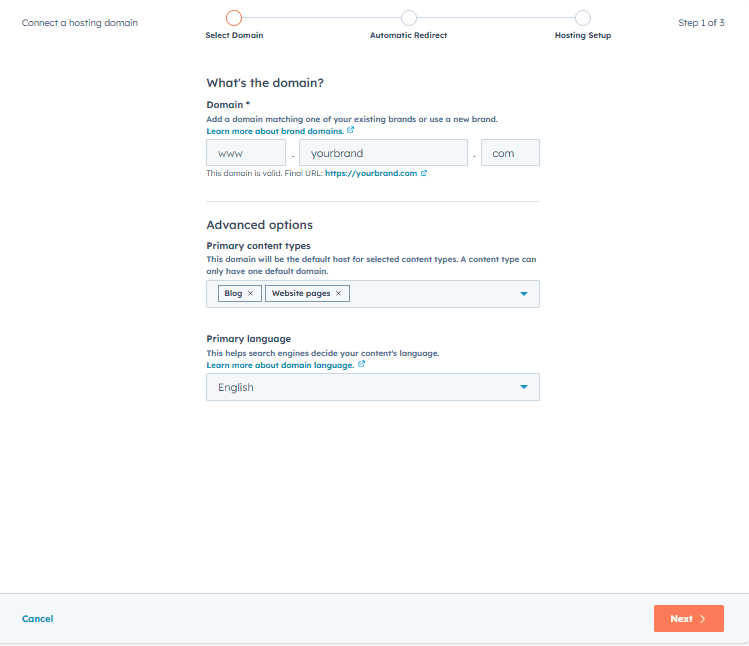
Assigning content types: Once connected, you can assign each domain a primary content type (e.g., Website, Blog) and set the primary language for localization.
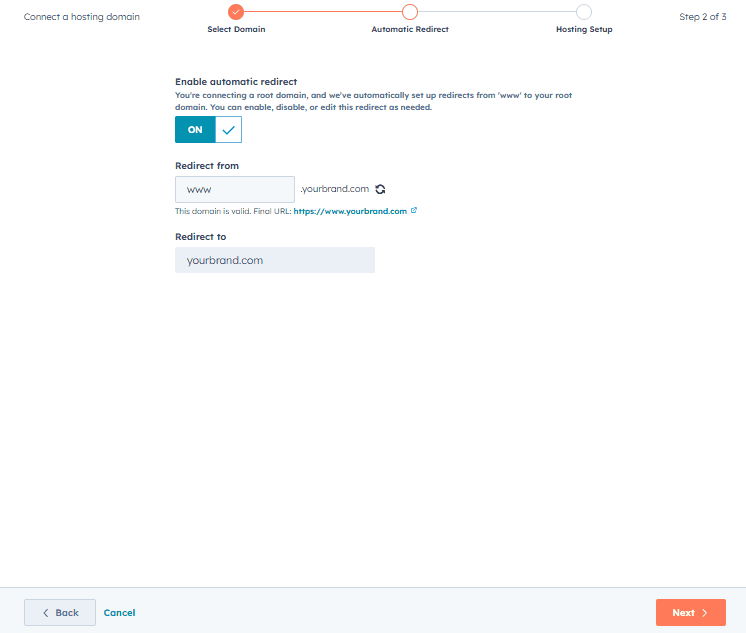
Redirect URL (optional): If you're replacing an old domain, use the Redirect URL field to forward traffic from the previous domain to the new one. This helps preserve SEO rankings and ensures a seamless user experience by avoiding broken links.
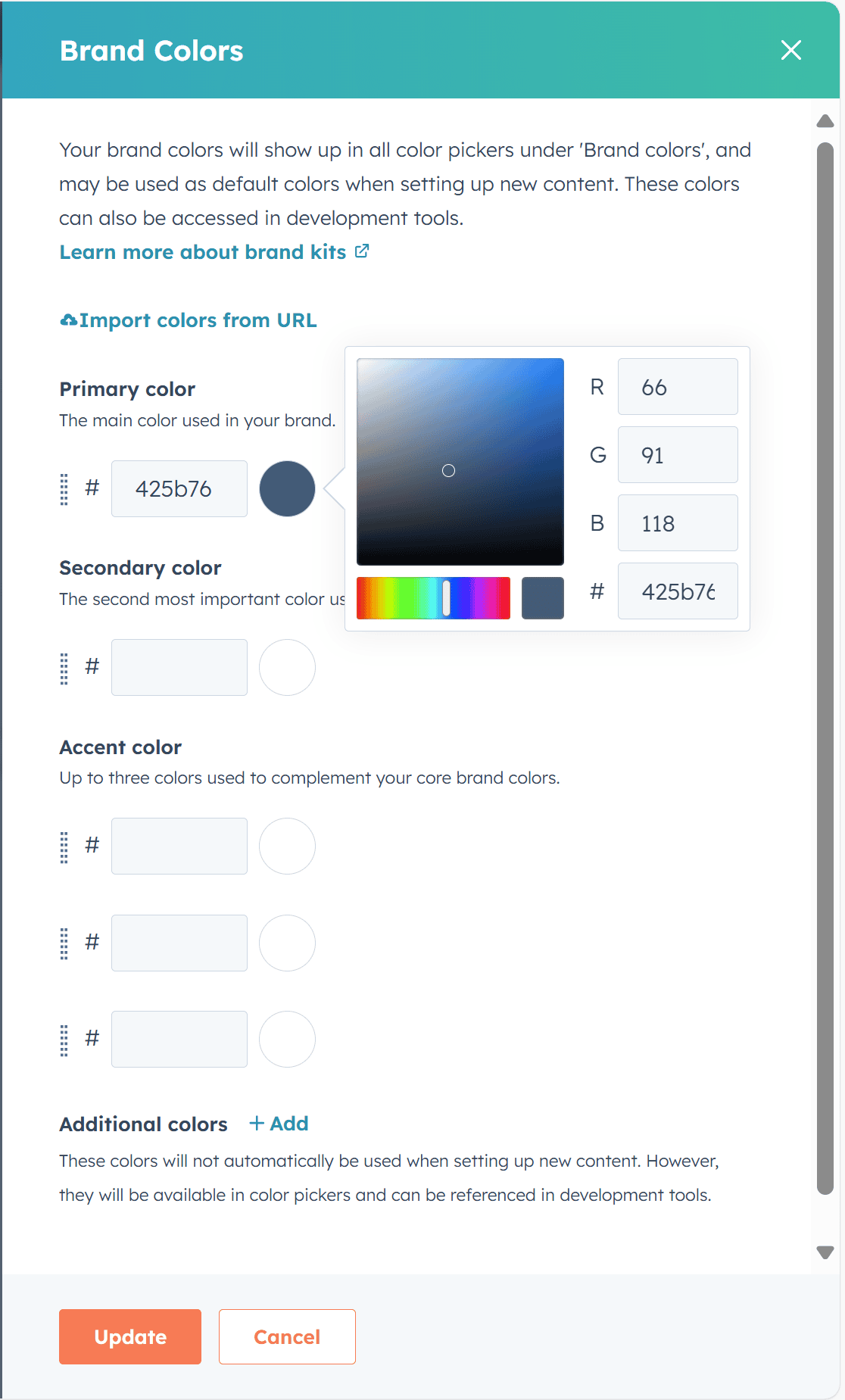
3. Choose Your Brand Colors
This step ensures your color palette is readily available in the Design Manager and other content tools.
Choose the Brand Colors. Input your brand's primary and secondary color HEX codes (e.g., #3191c8). This defines your core palette.
4. Choose the Theme
Why Managing Your HubSpot Theme Matters?
Your HubSpot theme controls how your website and landing pages look and behave. By customizing it, you make sure your brand colors, fonts, and layout are consistent across all content. This helps visitors recognize your brand instantly and improves their experience.
Customizing your theme also improves how your site performs. A well-structured theme can load faster, adapt better to mobile devices, and follow technical best practices that support search engines in understanding your content. While it’s not a direct SEO tool, a clean and responsive theme contributes to better visibility and user experience, which are key factors in search performance.
If you're using HubSpot CMS, managing your theme is one of the easiest ways to ensure your brand is reflected across all content types—from blog posts to landing pages—without needing to redesign each time.
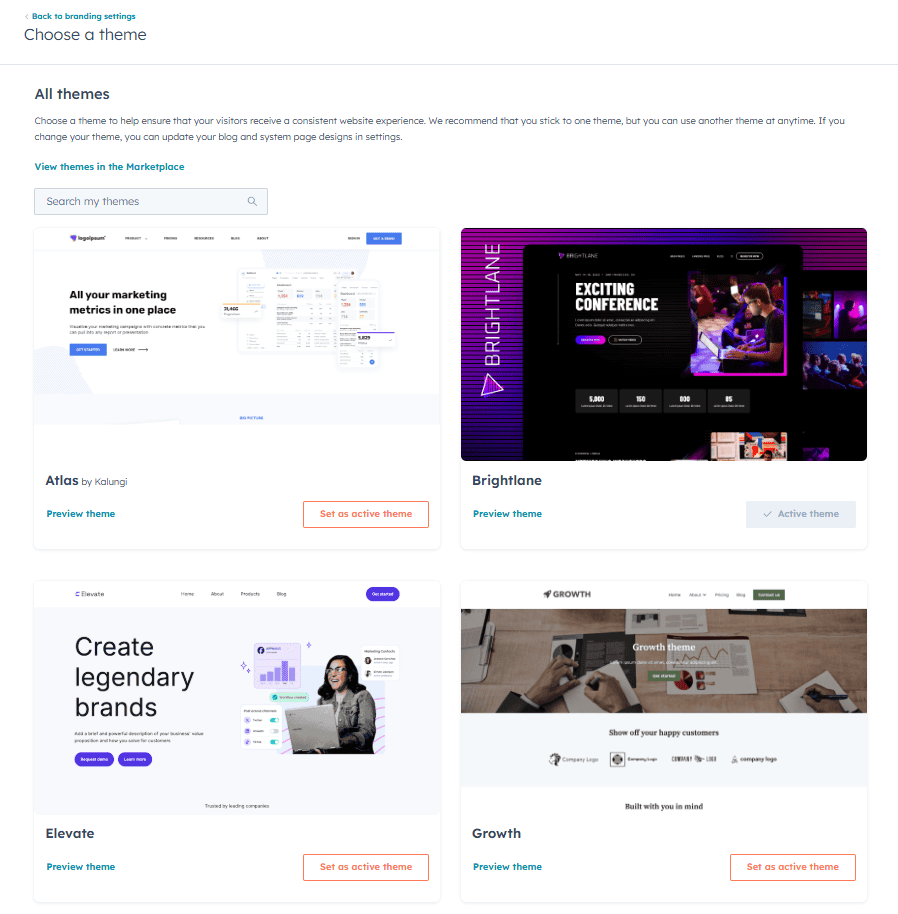
All accounts have access to at least one default HubSpot theme. Themes can be downloaded from the HubSpot Template Marketplace.
Customize Your Theme by Connecting Brand Colors
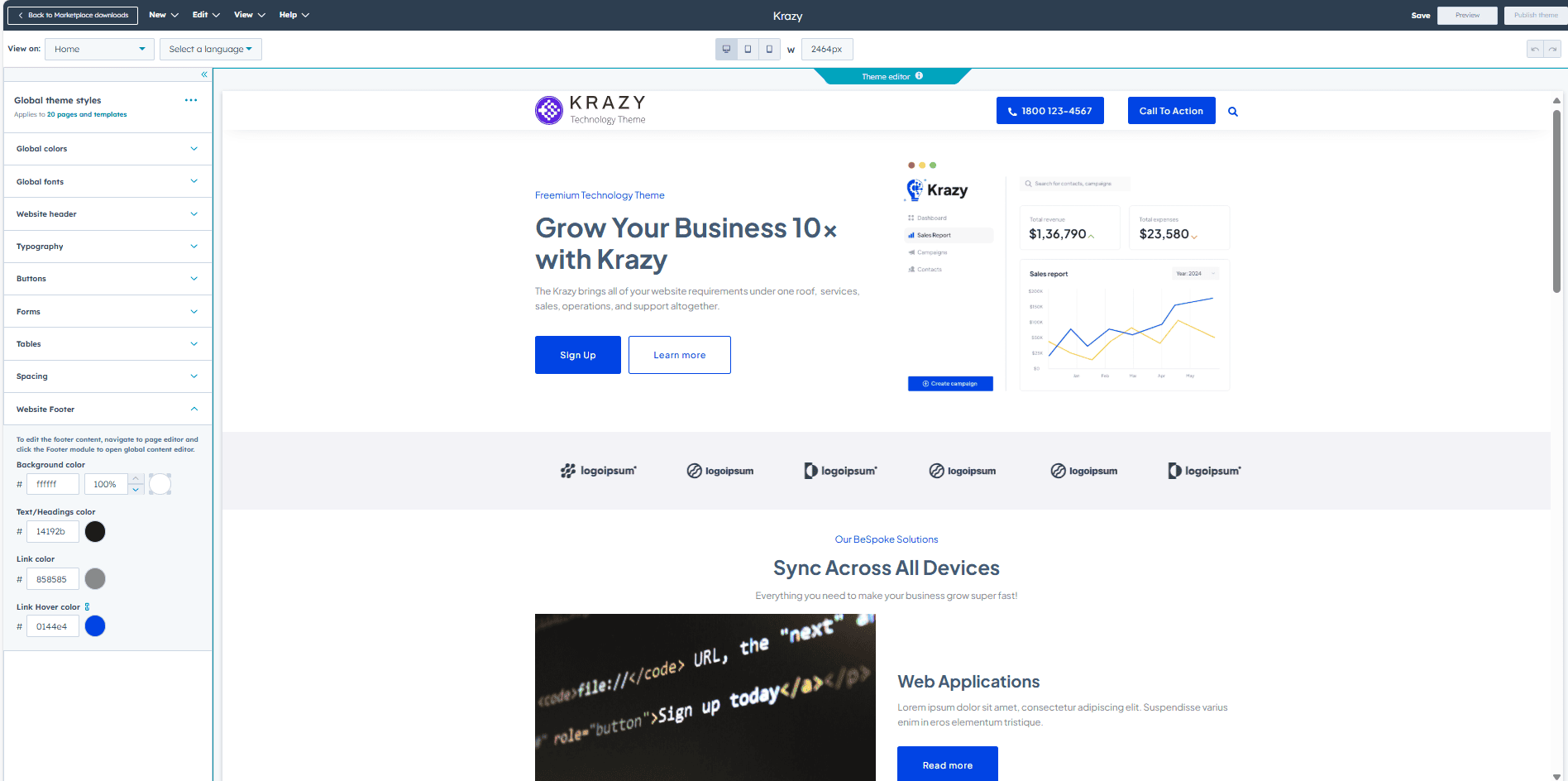
Once you've selected a theme in HubSpot, aligning it with your brand’s visual identity is key. Start by linking your predefined brand colors to the theme’s color variables. This ensures that every page, email, or landing experience built with the theme automatically reflects your official brand palette.
You can then adjust global styles such as button shapes, spacing between elements, and typography settings. These changes apply across all templates within the theme, helping maintain consistency without needing to manually style each asset.
By customizing your theme at this level, you create a cohesive experience for users and simplify content creation for your team — especially when working across multiple departments or regions.
5. Add fonts
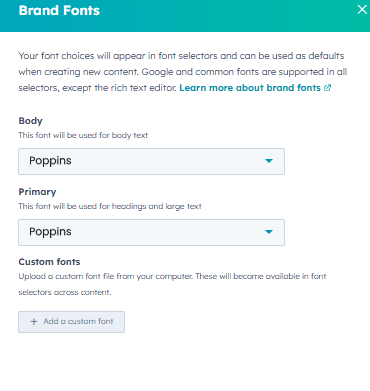
Choose the font that will be used for body text and primary text in your content. There is an option to download the google fonts or custom font file from your computer
Whether you're publishing a blog post, launching a campaign, or updating your website, a well-managed Brand Kit ensures everything looks and feels like your brand. No need for a designer for every task.
If you're interested in how a unified HubSpot setup can improve business operations, explore our article:
🔗 Optimizing Company Processes Through a Unified HubSpot Ecosystem
Just Getting Started with HubSpot?
If you're in the early stages of implementing HubSpot into your business processes, we help companies do it without wasting time on unnecessary features. We also integrate HubSpot with other tools to create a connected, scalable system tailored to your needs.
👉 Contact us to get a personalized consultation or estimate for setting up your HubSpot account.